
As part of the expense request workflow, your organization may require a multi-level approval/consent process prior to reimbursing the employee for the incurred expense. When activated, an expense request is sent to the designated number of managers for review, starting with the employee's manager (or next user above employee who has the proper access rights to review expense requests). When consent is received by that manager, the expense tickets then moves on to the next upline manager (who has access rights) to receive additional consent. This process continues until the required number of consent levels is reached.
However, it may be desirable for some individuals (such as executives) to be excluded from this expense re-routing workflow. In such instances, the omission of individuals from the multi-level process is administered in the Required Expense Consenter Bypass feature. When activated, there are three methods that may be chosen to bypass certain employees:
Each method for omission may be selected and work independently of each other.
Notes:
To Manage Users Excluded from Expense Re-Routing:
1. On the Management Navigation Menu, click Wage & Tax > Expense ApprovalWage & Tax > Expense Approval.
The Expense ReimbursementsExpense Reimbursements page displays.
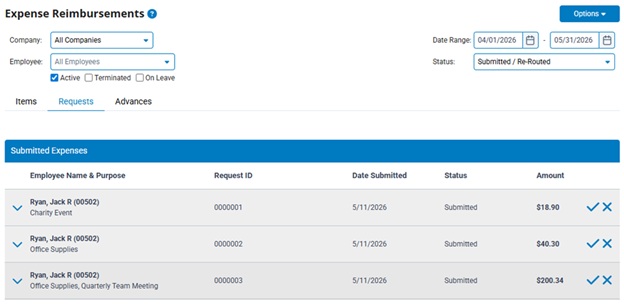
2. Select Required Consent Bypass from the OptionsOptions drop-down menu.

The Required Expense Consenter BypassRequired Expense Consenter Bypass page displays.
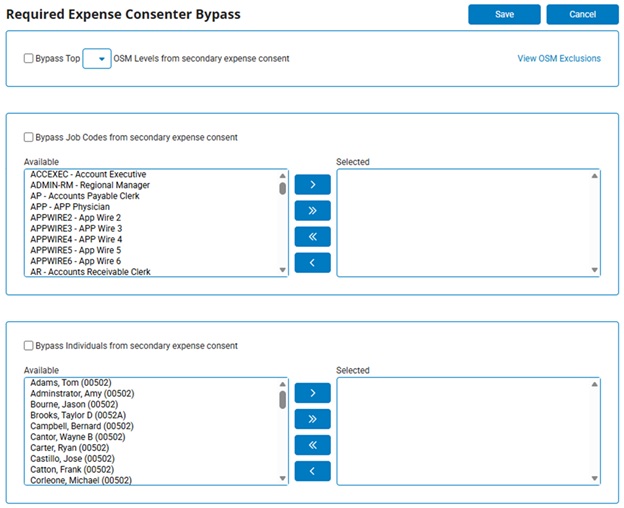
3. Activate the bypass options(s) as desired by checking the appropriate boxes and selecting the respective values that are to be bypassed.
4. Once satisfied with the selected values, click the SaveSave button to make the changes effective.

Related Help Topics: