
Within the expense utility is the ability to designate another user within your organization to create and submit new expense requests on behalf of another member of your organization. This may be particularly useful when needing to allow an Executive Assistant to complete expense filings for their designated Executive Office within the organization. This feature is managed by Expense Administrators through the Alternate Expense Submitter Setup tool.
When an expense is submitted by an Alternate Submitter, both the Alternate Submitter and the designated employee will be able to view the expense requests as it moves through the approval and payout process.
To assign or manage rights employees to create expense requests on behalf of other employee:
1. On the Management Navigation Menu, click Wage & Tax > Expense ApprovalWage & Tax > Expense Approval.
The Expense ReimbursementsExpense Reimbursements page displays.
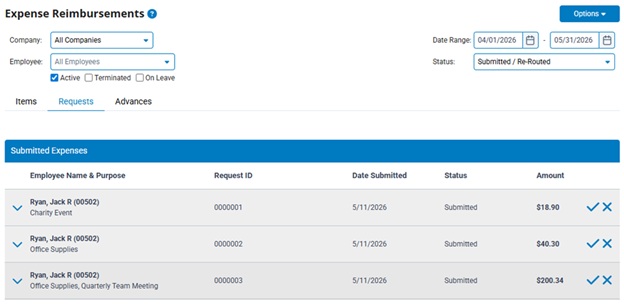
2. Select Alternate Submitters from the OptionsOptions drop-down menu.

The Alternate Expense Submitter SetupAlternate Expense Submitter Setup page displays.
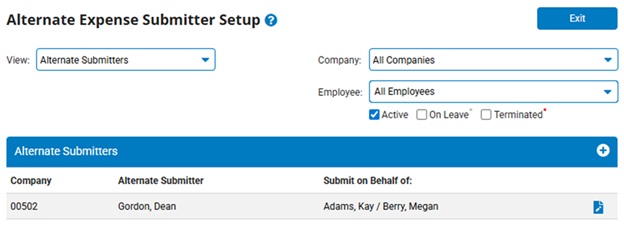
3. Click the Add Alt Submitter icon to add expense creation rights for an employee and select the employee in the Alternate Submitter field who will be creating expense requests on behalf of another employee.
Alternatively, click the EditEdit button next to an employee's name to manage the existing rights of an employee.

The Edit Alternate SubmitterEdit Alternate Submitter page displays.
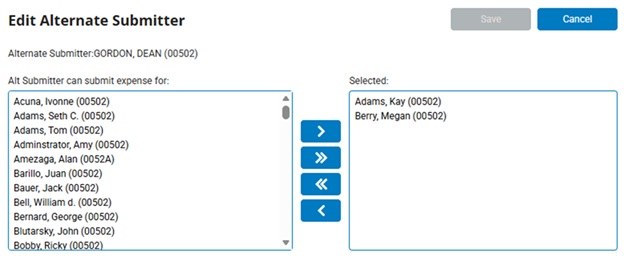
4. In the list of employees, select all of the individuals for whom the Alternate Submitter should be able to create expense items for.
5. Once satisfied with the selected values, click the SaveSave button to make the changes effective.

Related Help Topics: