
Your employees submit Expense Requests when seeking reimbursement for business expenses. If one of your employees does not have access to a computer to submit an expense request, you may create and directly approve an expense request on behalf of your employee.
Notes:
To submit an Expense Request:
1. On the Management Navigation Menu, click Wage & Tax > Expense ApprovalWage & Tax > Expense Approval.
The Expense ReimbursementsExpense Reimbursements page displays.
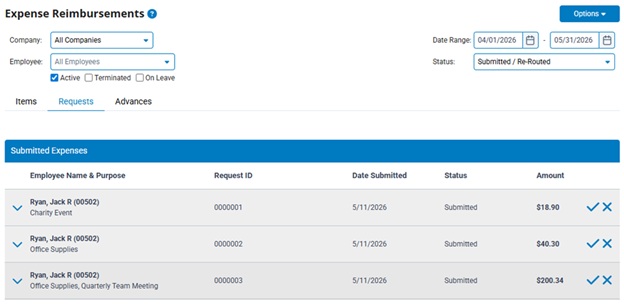
2. Navigate to the Items tab of the Expense Approval utility.
3. In the Employee drop-down list, select the individual whom you are creating the expense request for.
The Items tabItems tab updates to show all unsubmitted expense items that have been entered for the selected employee.
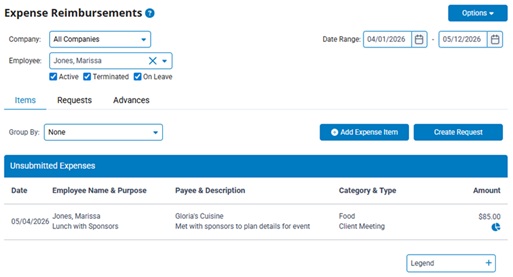
4. Click the Create RequestCreate Request button.

The Create Request sectionCreate Request section appears above all the existing unsubmitted expense items.
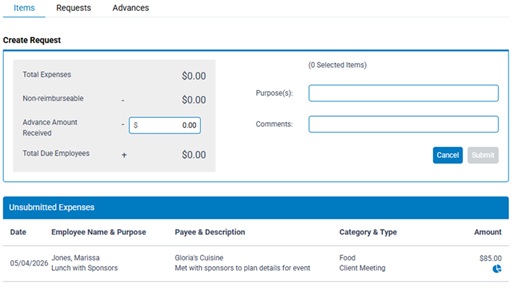
5. In the Unsubmitted Expenses section, click on the expense item(s) that are to be included in the reimbursement request being created.
As items are selected, the Create Request section above updates to reflect the total sum of all selected items and combination of expense purposes.
Note: A single Expense Request may include multiple charges incurred for the same purpose (e.g. rental car, hotel stays, and meals on the same business trip). You may add all expenses incurred for a single purpose to one request.
6. If you previously received an advance payment that should be applied to offset this expense, enter the amount in the Advance Amount Received field.
7. If desired, the Purpose and Comments text boxes may be used to provide any supplemental information to the reviewer of the request.
8. Click the Submit button to finalize the request and send it to the designated approver for review.
Result: The submitted request (and the associated expense items) is now displayed on the Requests tab of the Expense Reimbursement utility. A notification is sent to the designated approver so that the request may be reviewed. If approved, the expense will be reimbursed on an upcoming paycheck. If more information or edits need to be made, the request may be sent back accordingly.
Note: Edits to a submitted request may be made at any time prior to the request being approved (once approved, only an Expense Administrator can make edits). To edit or delete a submitted request, click on the request to view the editable fields or access the Delete button.
Related Help Topics
Recording an Incurred Business Expense
Reviewing a Submitted Expense Request
Re-Routing a Submitted Request for Review by Other Managers
Providing a Manager access rights to the Expense Approval utility
Providing Employee Ability to Submit Requests for Other Employee(s)