
After managers approve an employee expense, an Expense Administrator must review the request and post it to payroll before the employee can be reimbursed.
|
You received notification that a manager has approved an expense request. After reviewing the expense items and verifying the receipts for each item, you are ready to finalize the request for payment on the employee's next paycheck. By posting the request, you are authorizing the payment to the employee. |
To post an approved employee expense request:
1. On the Management Navigation Menu, click Wage & Tax > Expense ApprovalWage & Tax > Expense Approval.
The Expense ReimbursementsExpense Reimbursements page displays.
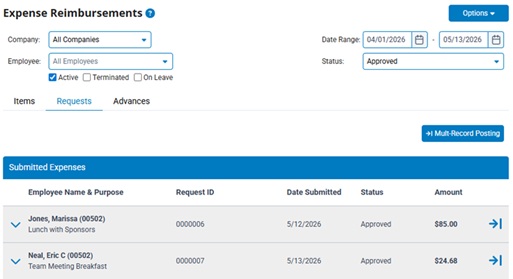
2. If necessary, adjust the filtersadjust the filters to change the requests displayed in the Submitted Expenses table.
The Submitted Expenses table updates to display the expense requests you selected.
3. To review the approved request before posting it, either click the down arrow ( ) next to the request to display a summary of all the expense item(s) included in the total reimbursement amount or click the expense request row to open the Expense Request details page for a more detailed view (see Related Help Topic).
Note: On the Expense Request details page, the Payout field can be reviewed to ensure that the desired setting is selected to either provide the reimbursement funds to the employee on their next scheduled paycheck or issued as a separate paycheck outside of the normal payroll cycle.
4. When you are satisfied with the request, click the Post button.
To post multiple Expense/Advance Requests simultaneously, select the Multi-Record Posting button. This feature provides the convenience of selecting which approved requests are ready to be paid out and place them all in Posted status with a single click.
Result: The approved request is posted to payroll and changed to Posted status. The reimbursement is automatically added to either the employee's paycheck in the next applicable pay period or issued as an off-cycle check (depending on the Payout option that was selected). After the employee has been reimbursed, the status of the request will change to Paid and the pay date will be saved on the expense record.
Note: After Post, the reimbursement is visible to the employee and manager in the Time Clock Report as a Miscellaneous Adjustment. If needed, the Re-Open button within the request cancels the previous payout authorization of the request and returns it to Approved status for additional review or other necessary actions.
Related Help Topics
Reviewing Submitted Expense Requests
Reviewing an Expense Analysis Report
Administrative Configuration of Expense Category and Account Settings